Choose Rooms
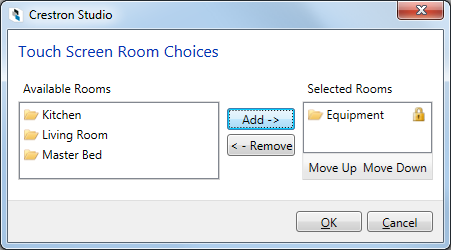
Press the  button (in the Program
Touch Screens section of Design &
Program) to open the Touch Screen
Room Choices Dialog which lets you specify what rooms the touch
screen can route sources to, and also adjust the order in which the selected
rooms are displayed.
button (in the Program
Touch Screens section of Design &
Program) to open the Touch Screen
Room Choices Dialog which lets you specify what rooms the touch
screen can route sources to, and also adjust the order in which the selected
rooms are displayed.
Initially, all Media
Zone enabled rooms in your project will be shown in the Selected
Rooms pane on the right, and the Available
Rooms pane on the left will be empty.
Select each room (multi-selection is not supported) and use the  button to remove rooms from the Selected
Rooms list, or the
button to remove rooms from the Selected
Rooms list, or the  button to add a previously excluded room back in. Rooms placed in the
Available Rooms pane will NOT
be visible at run time.
button to add a previously excluded room back in. Rooms placed in the
Available Rooms pane will NOT
be visible at run time.
To adjust the order in which the selected rooms will be displayed, use
the Move Up/Move Down buttons.
Notes:
- You CANNOT remove the room where the touch screen is located
(marked with a lock icon
 )
from the Selected Rooms pane.
)
from the Selected Rooms pane.
- You can Choose Rooms... only when your System is a Home System generated with the CSR Templates.